
Permission prompts are useful until they become background noise.
When Claude Code asks before every edit, shell command, or network request, you stay in control—but long tasks become difficult to delegate. When you remove every check, Claude can work uninterrupted—but a misunderstood instruction, unsafe command, or malicious prompt injection can have a much larger blast radius.
Permission modes let you choose that trade-off once for the current job. Instead of approving each action individually, you select a baseline policy that determines what Claude may run automatically, what still needs approval, and what must be denied.
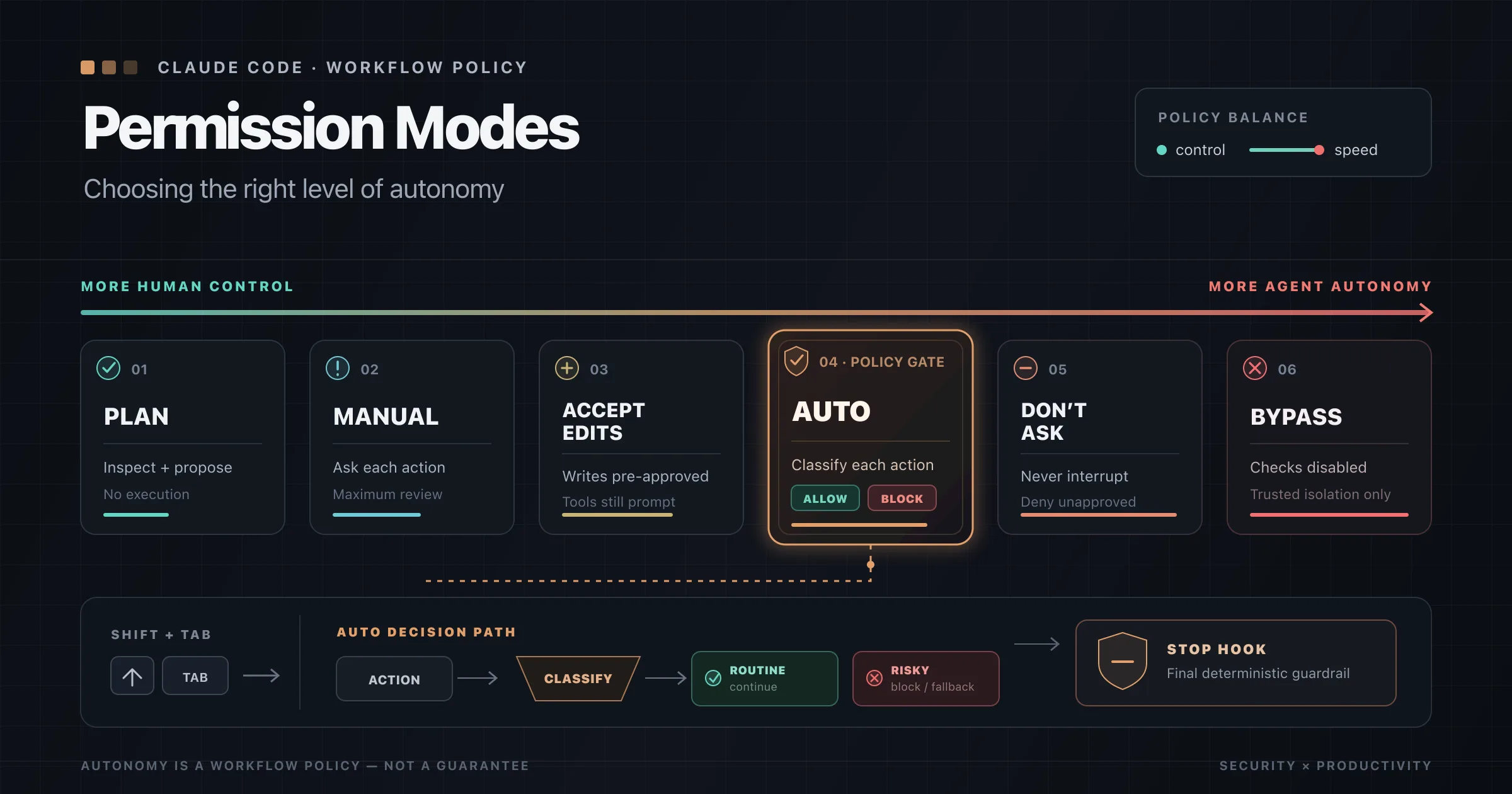
Claude Code currently provides six permission modes:
- Manual
- Accept Edits
- Plan
- Auto
- Don't Ask
- Bypass Permissions
The important part is not memorizing six labels. It is understanding which mode matches the risk, environment, and level of human supervision for the task.
This article reflects the Claude Code documentation available on July 30, 2026. Auto mode and its classifier rules are evolving, so verify the current documentation before relying on a specific allow or block behavior.
Permission Modes Are Workflow Policy
A permission mode establishes the default approval behavior for a Claude Code session.
It does not replace every other control. Claude Code also supports:
permissions.allow,permissions.ask, andpermissions.denyrulesPreToolUse,PermissionRequest,PermissionDenied, andStophooks- Bash sandboxing with filesystem and network restrictions
- organization-managed settings
- protected paths that receive additional safeguards
These controls operate at different layers.
Permission modes decide whether a tool call may run and whether Claude should pause for approval. Permission rules create explicit exceptions or hard boundaries. Hooks can inspect or block actions programmatically. The sandbox limits what a Bash process can access after the command starts.
The safest configurations combine these layers instead of treating any single one as complete protection.
The Six Permission Modes
| UI label | Configuration value | What runs without asking | Best fit |
|---|---|---|---|
| Manual | default | File reads and built-in read-only operations | Sensitive work and unfamiliar repositories |
| Accept Edits | acceptEdits | Reads, in-scope file edits, and common filesystem commands | Interactive coding with review after the change |
| Plan | plan | Research and read-only exploration; additional classifier-approved commands when Auto is available | Analysis before implementation |
| Auto | auto | Routine actions, with background safety checks for actions that require classification | Long-running development tasks |
| Don't Ask | dontAsk | Only actions that are already approved by rules, built-in read-only behavior, or hooks | CI, scripts, and unattended runs |
| Bypass Permissions | bypassPermissions | Almost everything, without the normal permission checks | Disposable, isolated containers or virtual machines |
The table is the overview. The differences become more important when you look at how each mode behaves around file scope, protected paths, shell commands, and unattended execution.
Manual Mode
Manual is the conservative default. Its configuration value is default, although recent Claude Code versions also accept manual as an alias.
Claude can inspect the project without interrupting you. Reads, searches, and a built-in set of read-only shell commands can run automatically. State-changing operations—such as most Bash commands, file modifications, or network actions—normally require approval.
Manual mode is useful when:
- you are opening an unfamiliar repository
- the project contains production credentials or infrastructure configuration
- you want to inspect every state-changing action
- the task is ambiguous and the cost of a mistake is high
Manual does not mean approving the same safe command forever. When Claude presents a permission dialog, you can approve only that invocation or add a scoped rule so matching operations do not ask again.
The key is scope. Approving Bash(npm test) is much safer than approving arbitrary shell access.
Accept Edits Mode
Accept Edits lets Claude create and modify files inside the working directory without asking for every change. It also auto-approves several common filesystem commands, including operations such as:
mkdirtouchrmrmdirmvcpsed
That automatic approval applies only to paths inside the working directory or configured additional directories. Commands that reach outside that scope, writes to protected paths, and Bash commands outside the approved read-only or filesystem set can still prompt.
This mode is ideal for ordinary coding sessions where you plan to review the result afterward:
claude --permission-mode acceptEdits
A practical workflow is:
- Start from a clean Git working tree.
- Enter Accept Edits mode.
- Ask Claude to implement the change.
- Review
git diff. - Run tests and static analysis.
- Commit only after the result is verified.
Accept Edits optimizes for iteration speed. It does not verify that the edit is correct, secure, or aligned with your architecture.
Plan Mode
Plan mode is for investigation before implementation.
Claude can read files, inspect the codebase, run read-only exploration commands, and produce a proposed implementation plan. It does not normally edit your source files until you approve the plan and leave Plan mode.
Start directly in Plan mode with:
claude --permission-mode plan
Or use /plan for a single planning request.
Plan mode is especially useful when:
- a change crosses several modules
- you want Claude to identify affected components before editing
- the repository is unfamiliar
- the task involves migrations, authentication, permissions, or infrastructure
- multiple implementation approaches need comparison
When Auto mode is available and useAutoModeDuringPlan is enabled, the Auto classifier can review shell commands during planning. Safe commands can run without prompting while blocked commands are denied.
Plan mode is still a behavioral workflow, not an absolute security boundary. Sessions launched with bypass permissions available can weaken the normal planning restrictions. Do not use Plan mode as the only protection around a dangerous environment.
Cycling Modes with Shift+Tab
In the CLI, press Shift+Tab to cycle through the interactive modes. The standard sequence is:
Manual -> Accept Edits -> Plan
Optional modes are added only when they are available:
- Auto appears when the account, organization, model, and provider support it.
- Bypass Permissions appears only when it was enabled when the session started.
- Don't Ask never appears in the
Shift+Tabcycle; select it with a startup flag or configuration.
The status bar shows the active mode. This matters because the same prompt can produce very different behavior depending on the current mode.
You can also select a mode at startup:
claude --permission-mode manual
claude --permission-mode acceptEdits
claude --permission-mode plan
claude --permission-mode auto
claude --permission-mode dontAsk
claude --permission-mode bypassPermissions
To set a default for new sessions, add it to ~/.claude/settings.json:
{
  "permissions": {
    "defaultMode": "acceptEdits"
  }
}
For security, Auto mode must be configured in user or managed settings. A repository cannot grant itself Auto mode through project-local settings.
How Auto Mode Works
Auto is the primary mode for hands-off Claude Code sessions.
Instead of showing a human approval prompt for each action, Claude Code routes relevant actions through a separate classifier. The classifier evaluates whether the action is aligned with your request, stays inside the expected trust boundary, and avoids destructive or suspicious behavior.
Auto mode is not simply "approve everything with an AI check." Claude Code uses a decision pipeline:
- Explicit permission rules are evaluated.
- Read-only actions and ordinary in-project file edits are generally approved without classifier latency.
- Other actions—especially shell commands, network operations, external tools, and out-of-scope filesystem changes—can go to the classifier.
- A blocked action is returned to Claude, which should try a safer alternative instead of routing around the denial.
Auto mode also includes a separate prompt-injection defense. Tool results such as files, webpages, and command output are scanned before Claude consumes them. The action classifier itself does not receive raw tool results; it evaluates user messages and executable tool calls so hostile text from a webpage or file cannot directly persuade the classifier.
What Auto Mode Is Designed to Block
The exact rules evolve, but the current defaults focus on actions such as:
- downloading code and executing it directly, such as
curl | bash - sending sensitive data to an external destination
- production deployments and migrations
- force-pushing or destructively rewriting Git history
- destroying infrastructure with tools such as Terraform or Pulumi
- deleting pre-existing files irreversibly
- changing IAM, repository permissions, DNS, or TLS configuration
- modifying shared infrastructure beyond the resource the user named
- disabling security checks, CI protections, logging, or test assertions
- printing live credentials into a transcript or file
- opening public tunnels or reverse shells
- changing a Git remote to an unapproved destination
- publishing confidential data through a commit, pull request, issue, gist, or package
The classifier also considers explicit boundaries from the conversation. If you say, "Do not push until I review," Auto mode should treat a push as blocked until you clearly lift that condition.
Conversation boundaries are useful, but they are not durable policy. Context compaction can remove an earlier message. Use a permissions.deny or permissions.ask rule when the boundary must be enforced reliably.
What Auto Mode Commonly Allows
Routine development work is intended to continue without interruption, including:
- local file operations in the working directory
- installing dependencies already declared in lock files or manifests
- read-only HTTP requests
- reading credentials and sending them to their matching service
- pushing ordinary changes to the repository being worked on, provided the content and destination do not trigger another safety rule
- deleting exact temporary jobs that Claude created in the same session
- reviewing or modifying security-related source code as part of the requested task
Auto mode trusts the working repository and its configured remotes at session start. Other repositories, cloud buckets, internal services, and infrastructure targets may need to be declared through autoMode.environment.
Repeated Denials and Fallback
A denied action does not immediately stop the session. Claude receives the denial and can attempt a safer approach.
If the classifier blocks three actions consecutively or twenty actions in total, Auto mode pauses and returns to human permission prompts. In a non-interactive claude -p run, where no human is available, repeated denials terminate the run instead.
This is an important operational distinction:
- Auto is suitable for long interactive sessions that may occasionally need escalation.
- Don't Ask is better when a headless process must never wait for approval.
- Bypass Permissions eliminates the classifier rather than handling its denials.
What the Auto Classifier Cannot Guarantee
The classifier primarily evaluates authorization, intent, trust boundaries, and potential impact. It is not a code-review system.
Suppose you ask Claude to refactor authentication. Auto mode may correctly allow edits to the authentication module because they match your request and stay inside the repository. It does not prove that the new implementation is correct.
The result could still contain:
- broken logic
- a regression
- missing edge cases
- weakened authorization checks
- invalid migrations
- poor performance
- failing tests
Auto mode also does not eliminate operational risk. Anthropic's initial evaluation of the two-stage classifier reported a low false-positive rate on sampled internal traffic, but it still missed some genuinely overeager actions in a small real-world test set. Anthropic explicitly positions Auto as safer than skipping permissions—not as a replacement for careful human approval in high-stakes infrastructure work.
This leads to the most useful mental model:
Auto mode checks whether Claude should attempt the action. Verification checks whether the result actually works.
Pair Auto Mode with a Stop Hook
For autonomous coding, pair Auto mode with a verification hook.
A Stop hook runs when Claude finishes responding. It can prevent Claude from stopping and feed back a reason to continue. An agent-based Stop hook can run the test suite and evaluate the result:
{
  "hooks": {
    "Stop": [
      {
        "hooks": [
          {
            "type": "agent",
            "prompt": "Verify that all unit tests pass. Run the test suite and check the results. $ARGUMENTS",
            "timeout": 120
          }
        ]
      }
    ]
  }
}
The two controls solve different problems:
- Auto mode reviews actions before they run.
- The Stop hook verifies the result after Claude finishes a turn.
A stronger verification hook can also check:
- unit and integration tests
- linting and formatting
- type checking
- generated migrations
git diff- unexpected deleted files
- whether tests were weakened or skipped
- whether security-sensitive assertions changed
Remember that a Stop hook fires whenever Claude finishes responding, not only when an entire project task is complete. Design deterministic command hooks carefully, account for stop_hook_active, and avoid creating an infinite retry loop. Claude Code has a consecutive block cap, but the hook should still be written to converge.
Add Human Checkpoints Inside Auto Mode
Auto mode may allow an ordinary push or pull-request creation when it matches the task. Teams that require a human checkpoint should encode that policy explicitly.
For example:
{
  "permissions": {
    "defaultMode": "auto",
    "ask": [
      "Bash(git push *)",
      "Bash(gh pr merge *)",
      "Bash(terraform apply *)",
      "Bash(kubectl apply *)"
    ],
    "deny": [
      "Bash(git push --force *)",
      "Bash(terraform destroy *)"
    ]
  }
}
This configuration keeps routine local work autonomous while requiring approval for publishing or applying changes. The deny rules remain hard boundaries even when the user changes the active permission mode.
Use narrow patterns. A blanket Bash(*) rule grants arbitrary command execution and can be dropped when Auto mode starts so the classifier can inspect high-risk shell operations. Narrow rules such as Bash(npm test) can carry over.
Don't Ask Mode for Unattended Runs
Don't Ask is designed for environments where no human is present to answer a prompt.
In this mode, any action that would normally ask for approval is denied automatically. Claude can use:
- tools allowed by
permissions.allow - built-in read-only behavior
- operations approved by a
PreToolUsehook
Everything else fails without opening a dialog.
That behavior makes Don't Ask appropriate for:
- CI pipelines
- scheduled jobs
- overnight analysis
- restricted automation
- reproducible code-review tasks
- headless
claude -pruns
A locked-down Node.js CI configuration might look like this:
{
  "permissions": {
    "defaultMode": "dontAsk",
    "allow": [
      "Read",
      "Glob",
      "Grep",
      "Bash(npm ci)",
      "Bash(npm test)",
      "Bash(npm run lint)",
      "Bash(npm run typecheck)"
    ],
    "deny": [
      "Bash(git push *)",
      "Bash(npm publish *)"
    ]
  }
}
The pipeline will not hang waiting for approval. It will either complete using the approved tool surface or fail when the task requires something outside it.
Don't Ask is stricter and more predictable than Auto, but less flexible. Auto can evaluate a new action semantically. Don't Ask needs the action to be approved in advance.
Tools that inherently require user interaction are denied in Don't Ask mode because the mode never collects an answer.
Bypass Permissions Mode
Bypass Permissions disables the ordinary permission prompts and safety classifier. It is the mode behind --dangerously-skip-permissions.
Start it with:
claude --permission-mode bypassPermissions
Or:
claude --dangerously-skip-permissions
Despite the name, a small number of controls can still prompt or block. Explicit ask rules, organization-required approvals, tools marked as requiring user interaction, and certain root or home-directory deletion circuit breakers remain relevant.
Those exceptions do not make Bypass Permissions safe.
This mode provides no meaningful protection against:
- prompt injection
- misunderstood instructions
- accidental deletion
- credential exposure
- destructive shell commands
- unexpected network access
- changes to Claude Code's own configuration
Use it only inside an environment whose blast radius is already constrained:
- a disposable container or virtual machine
- no mounted SSH keys or cloud credentials
- no production kubeconfig
- no host filesystem mounts
- restricted or disabled outbound network access
- a temporary Git worktree or clone
- a non-root user
- data that can be deleted without consequence
The isolation is the safety mechanism. The permission mode is not.
Permission Modes and the Bash Sandbox
The Bash sandbox and permission modes are complementary.
A permission mode answers:
Should this tool call run, and should the user be asked first?
The sandbox answers:
Once this Bash command runs, which files and network destinations can it access?
This distinction matters. Auto mode may decide that npm test is aligned with the task, while the sandbox ensures that the command cannot read unrelated credentials or contact arbitrary domains.
For autonomous work, a strong setup often combines:
- Auto mode for semantic approval
- Bash sandboxing for filesystem and network isolation
- permission rules for hard organizational boundaries
- hooks for policy enforcement and verification
- Git for review and recovery
Match the Mode to the Job
Use Manual when oversight matters most
Choose Manual for production debugging, credential handling, unfamiliar repositories, and tasks where each state-changing operation deserves review.
Use Accept Edits for normal interactive development
Choose Accept Edits when Claude is modifying code locally and you are present to inspect the diff, run tests, and approve external actions.
Use Plan before complex or risky changes
Choose Plan for architecture work, migrations, authentication changes, large refactors, and any task where the approach should be reviewed before implementation.
Use Auto for long development tasks
Choose Auto when the goal is clear, the repository is trusted, and you want Claude to complete a multi-step task without constant approval prompts.
Pair it with:
- explicit ask rules for push, merge, deployment, and infrastructure changes
- a Stop hook or verification skill
- sandboxing
- a clean Git branch or worktree
Use Don't Ask for fixed unattended workflows
Choose Don't Ask for CI and scheduled automation where the allowed tool surface is known in advance and the process must fail instead of waiting for input.
Use Bypass Permissions only when isolation is the real guardrail
Choose Bypass Permissions only in a disposable environment where Claude cannot reach anything important—even if it executes the worst plausible command.
Common Permission-Mode Mistakes
Treating Auto as a correctness checker
Auto evaluates safety and authorization, not whether the implementation passes tests or satisfies the specification.
Using conversation text as permanent policy
"Do not push" can guide the classifier, but a deny or ask rule is a more reliable enforcement mechanism.
Assuming every allow rule bypasses Auto
Auto mode can remove broad rules that grant arbitrary execution. Prefer narrow, task-specific rules.
Running Bypass Permissions on the host machine
A project directory is not an isolation boundary. Host credentials, user files, browser data, Docker sockets, and cloud configuration may still be reachable.
Forgetting protected paths
Accept Edits and Auto do not automatically approve every file write. Claude Code protects configuration and executable paths that could change repository behavior or Claude's own controls.
Using Auto for a workflow that must never prompt
Auto can fall back to human approval after repeated denials. Use Don't Ask for a genuinely unattended pipeline.
A Practical Default Strategy
For most developers, a sensible progression is:
- Start unfamiliar work in Plan or Manual mode.
- Switch to Accept Edits once the approach is understood.
- Use Auto for a well-scoped implementation that may take many steps.
- Require explicit approval for push, merge, deployment, and infrastructure changes.
- Run verification through tests, linting, type checks, and a Stop hook.
- Use Don't Ask for repeatable headless workflows.
- Reserve Bypass Permissions for disposable isolated environments.
Permission modes are not just convenience settings. They are part of the execution architecture of an AI coding agent.
The best mode is the one that gives Claude enough autonomy to finish the task while keeping irreversible actions, external side effects, and correctness checks under explicit control.
References
- Claude Code: Choose a Permission Mode - code.claude[.]com/docs/en/permission-modes
- Claude Code: Configure Permissions - code.claude[.]com/docs/en/permissions
- Claude Code: Configure Auto Mode - code.claude[.]com/docs/en/auto-mode-config
- Claude Code: Automate Workflows with Hooks - code.claude[.]com/docs/en/hooks-guide
- Claude Code: Hooks Reference - code.claude[.]com/docs/en/hooks
- Claude Code: Configure the Sandboxed Bash Tool - code.claude[.]com/docs/en/sandboxing
- Claude: Auto Mode for Claude Code - claude[.]com/blog/auto-mode
- Anthropic Engineering: How We Built Claude Code Auto Mode - anthropic[.]com/engineering/claude-code-auto-mode